
LLM example
2026-08-08 13:19:09js const sentences = [ "i like cats", "i like dogs", "i like coding", "you like cats", "you like dogs", "we like coding", "cats like fish", "dogs like meat", "coding is fun", "javascript is fun" ]; const words = [...new Set(sentences.join(" ").split(" "))]; const V = words.length; const id = w = words.indexOf(w); const W = Array.from({ length: V }, () = Array.from({ length: V }, () = Math.random() 0.2 - 0.1) ); const lr = 0.1; function softmax(x) { const m = Math.max(...x); const e = x.map(v = Math.exp(v - m)); const s = e.reduce((a, b) = a + b); return e.map(v = v / s); } // REAL TRAINING for (let epoch = 0; epoch < 5000; epoch++) { let loss = 0; for (const sentence of sentences) { const ws = sentence.split(" "); for (let i = 0; i < ws.length - 1; i++) { const input = id(ws[i]); const target = id(ws[i + 1]); const p = softmax(W[input]); loss -= Math.log(p[target] + 1e-9); // Cross-entropy gradient p[target] -= 1; for (let j = 0; j < V; j++) W[input][j] -= lr p[j]; } } if (epoch % 500 === 0) console.log("epoch:", epoch, "loss:", loss.toFixed(3)); } // PREDICT NEXT WORD function predict(word, count = 5) { const probabilities = softmax(W[id(word)]); return probabilities .map((probability, i) = ({ word: words[i], probability })) .sort((a, b) = b.probability - a.probability) .slice(0, count); } console.log(predict("i")); console.log(predict("like")); console.log(predict("coding")); Example After training: js predict("i"); Might produce: text [ { word: "like", probability: 0.99 }, { word: "cats", probability: 0.00 }, { word: "dogs", probability: 0.00 } ] And: js predict("like"); Might produce: text [ { word: "cats", probability: 0.45 }, { word: "dogs", probability: 0.35 }, { word: "coding", probability: 0.20 } ] What the model learns The model learns relationships such as: text i → like you → like we → like like → cats like → dogs like → coding cats → like dogs → like coding → is javascript → is is → fun The training process is: text input word ↓ neural parameters W ↓ probability for every word ↓ cross-entropy loss ↓ gradient ↓ update W ↓ repeat thousands of times This is genuine gradient-descent training, although the model is extremely small. It is a word-level neural language model, not yet a Transformer. A minimal Transformer would add: text Tokenization ↓ Embeddings ↓ Self-Attention ↓ Feed-Forward Network ↓ Softmax ↓ Next-token prediction ↓ Backpropagation
ПрочетиRegex parser
2026-08-08 13:12:11js class RegexEngine { constructor(pattern) { this.pattern = pattern; this.pos = 0; this.ast = this.parse(); } // ========================= // PARSER // ========================= peek() { return this.pattern[this.pos]; } consume() { return this.pattern[this.pos++]; } parse() { const ast = this.parseAlternation(); if (this.pos < this.pattern.length) { throw new Error( Unexpected character '${this.peek()}' at ${this.pos} ); } return ast; } parseAlternation() { const alternatives = [ this.parseSequence() ]; while (this.peek() === '|') { this.consume(); alternatives.push( this.parseSequence() ); } if (alternatives.length === 1) { return alternatives[0]; } return { type: "Alternation", alternatives }; } parseSequence() { const elements = []; while ( this.pos < this.pattern.length && this.peek() !== ')' && this.peek() !== '|' ) { elements.push( this.parseTerm() ); } return { type: "Sequence", elements }; } parseTerm() { let node = this.parseAtom(); const char = this.peek(); if ( char === "" || char === "+" || char === "?" ) { this.consume(); let min; let max; if (char === "") { min = 0; max = Infinity; } if (char === "+") { min = 1; max = Infinity; } if (char === "?") { min = 0; max = 1; } node = { type: "Quantifier", expression: node, min, max }; } return node; } parseAtom() { const char = this.consume(); if (char === undefined) { throw new Error("Unexpected end of pattern"); } // Group if (char === "(") { const expression = this.parseAlternation(); if (this.peek() !== ")") { throw new Error("Missing ')'"); } this.consume(); return { type: "Group", expression }; } // Any character if (char === ".") { return { type: "Any" }; } // Escape if (char === "\\") { const escaped = this.consume(); if (escaped === undefined) { throw new Error("Incomplete escape"); } return { type: "Literal", value: escaped }; } // Literal return { type: "Literal", value: char }; } // ========================= // MATCHER // ========================= match(text) { const results = this.matchNode( this.ast, text, 0 ); return results.some( position = position === text.length ); } matchNode(node, text, pos) { // Literal if (node.type === "Literal") { if (text[pos] === node.value) { return [pos + 1]; } return []; } // Any character if (node.type === "Any") { if (pos < text.length) { return [pos + 1]; } return []; } // Sequence if (node.type === "Sequence") { let positions = [pos]; for (const element of node.elements) { const next = []; for (const p of positions) { next.push( ...this.matchNode( element, text, p ) ); } positions = next; if (positions.length === 0) { break; } } return positions; } // Alternation if (node.type === "Alternation") { const results = []; for (const alternative of node.alternatives) { results.push( ...this.matchNode( alternative, text, pos ) ); } return results; } // Group if (node.type === "Group") { return this.matchNode( node.expression, text, pos ); } // Quantifier if (node.type === "Quantifier") { let positions = [pos]; let count = 0; while ( count < node.max ) { const next = []; for (const p of positions) { next.push( ...this.matchNode( node.expression, text, p ) ); } // Nothing more can be matched if (next.length === 0) { break; } // Prevent infinite loops if ( next.every( (p, i) = p === positions[i] ) ) { break; } positions = [ ...new Set(next) ]; count++; } if (count < node.min) { return []; } return positions; } throw new Error( Unknown AST node: ${node.type} ); } } Regex Engine Examples 1. Basic matching js const regex = new RegexEngine("a+b"); console.log(regex.match("ab")); // true console.log(regex.match("aaab")); // true console.log(regex.match("b")); // false 2. Alternation js const regex = new RegexEngine("cat|dog"); console.log(regex.match("cat")); // true console.log(regex.match("dog")); // true console.log(regex.match("bird")); // false 3. Groups + quantifiers js const regex = new RegexEngine("(ab)+"); console.log(regex.match("ab")); // true console.log(regex.match("abab")); // true console.log(regex.match("ababab")); // true console.log(regex.match("ac")); // false 4. Any character . js const regex = new RegexEngine("a.c"); console.log(regex.match("abc")); // true console.log(regex.match("axc")); // true console.log(regex.match("a123c")); // false 5. Optional ? js const regex = new RegexEngine("colou?r"); console.log(regex.match("color")); // true console.log(regex.match("colour")); // true console.log(regex.match("colouur")); // false 6. Zero or more js const regex = new RegexEngine("abc"); console.log(regex.match("ac")); // true console.log(regex.match("abc")); // true console.log(regex.match("abbbc")); // true console.log(regex.match("abx")); // false 7. One or more + js const regex = new RegexEngine("ab+c"); console.log(regex.match("ac")); // false console.log(regex.match("abc")); // true console.log(regex.match("abbbc")); // true
ПрочетиHow to Crop an Image with Python
2026-08-04 01:10:26Cropping an image is one of the most common image-processing tasks. Whether you want to remove unwanted borders, focus on a specific area, or prepare images for machine learning, the Pillow library makes it simple. In this tutorial, we'll crop 100 pixels from each side of an image. Prerequisites Install Pillow if you haven't already: bash pip install pillow Python Code python from PIL import Image inputfile = "input.png" outputfile = "output.png" img = Image.open(inputfile) width, height = img.size Crop 100px from each side cropped = img.crop((100, 100, width - 100, height - 100)) cropped.save(outputfile) print(f"Saved: {outputfile}") How It Works 1. Open the Image python img = Image.open(inputfile) This loads the image into memory. 2. Get the Image Size python width, height = img.size The size property returns the image width and height in pixels. For example: Width: 1920 Height: 1080 3. Crop the Image python cropped = img.crop((100, 100, width - 100, height - 100)) The crop() method accepts a tuple in the following format: python (left, upper, right, lower) Where: left – X coordinate of the left edge upper – Y coordinate of the top edge right – X coordinate of the right edge lower – Y coordinate of the bottom edge In this example: Left = 100 Top = 100 Right = width - 100 Bottom = height - 100 This removes 100 pixels from every side of the image. If the original image is: 1920 × 1080 The cropped image becomes: 1720 × 880 4. Save the Cropped Image python cropped.save(outputfile) The image is saved as: output.png 5. Print a Confirmation python print(f"Saved: {outputfile}") Output: Saved: output.png Understanding Pillow Coordinates Pillow uses a coordinate system where (0, 0) is located in the top-left corner of the image. (0,0) +---------------------------+ | | | | | | | | +---------------------------+ (width,height) The crop rectangle is defined as: python (left, upper, right, lower) The left and upper boundaries are included, while the right and lower boundaries are excluded. Changing the Crop Amount To crop a different border size: python border = 50 cropped = img.crop(( border, border, width - border, height - border )) This removes only 50 pixels from each side. Cropping a Specific Region You can also crop any rectangular area. Example: python cropped = img.crop((300, 200, 900, 700)) This extracts the area between: X = 300 to 900 Y = 200 to 700 Supported Image Formats Pillow supports many popular image formats, including: PNG JPEG BMP TIFF GIF WebP The output format is determined automatically from the file extension. Complete Example python from PIL import Image inputfile = "input.png" outputfile = "output.png" img = Image.open(inputfile) width, height = img.size border = 100 cropped = img.crop(( border, border, width - border, height - border )) cropped.save(outputfile) print("Original:", img.size) print("Cropped:", cropped.size) Example output: Original: (1920, 1080) Cropped: (1720, 880) Saved: output.png Conclusion Cropping images with Pillow is simple and efficient. By defining the left, top, right, and bottom boundaries, you can quickly remove borders or extract specific regions from an image. Pillow's straightforward API makes it an excellent choice for image processing tasks in Python.
Прочети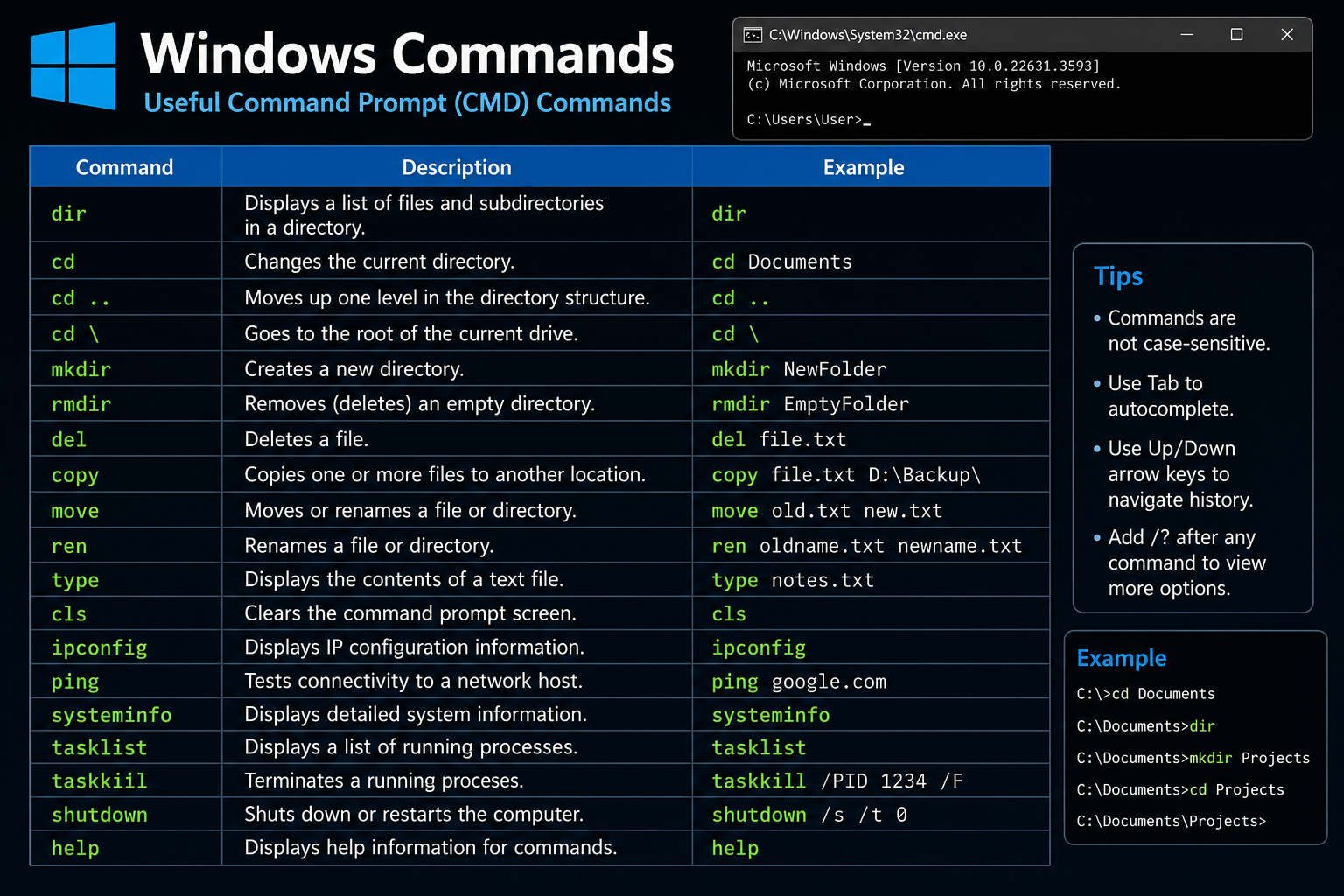
Windows commands
2026-07-28 18:19:49Most Windows executables can be started from Command Prompt as long as they are in the system PATH or you specify their full path. Below are many of the most useful built-in commands and GUI tools you can launch directly from cmd. | Command | Purpose | | ------------------ | --------------------------------------------------------- | | explorer | Open File Explorer or browse to a folder | | cmd | Open a new Command Prompt | | powershell | Start Windows PowerShell | | pwsh | Start PowerShell 7 (if installed) | | notepad | Text editor | | write | WordPad (older Windows versions) | | mspaint | Paint | | calc | Calculator | | snippingtool | Screenshot tool | | osk | On-Screen Keyboard | | magnify | Magnifier | | narrator | Screen reader | | charmap | Character Map | | winver | Windows version dialog | | dxdiag | DirectX diagnostics | | msinfo32 | System information | | control | Control Panel | | optionalfeatures | Windows Features dialog | | appwiz.cpl | Programs and Features | | sysdm.cpl | System Properties | | desk.cpl | Display settings (legacy) | | timedate.cpl | Date & Time settings | | main.cpl | Mouse settings | | mmsys.cpl | Sound settings | | ncpa.cpl | Network adapters | | firewall.cpl | Windows Firewall | | inetcpl.cpl | Internet Options | | taskmgr | Task Manager | | resmon | Resource Monitor | | perfmon | Performance Monitor | | eventvwr | Event Viewer | | compmgmt.msc | Computer Management | | devmgmt.msc | Device Manager | | diskmgmt.msc | Disk Management | | services.msc | Services manager | | taskschd.msc | Task Scheduler | | gpedit.msc | Group Policy Editor (Pro/Enterprise) | | secpol.msc | Local Security Policy | | lusrmgr.msc | Local Users and Groups | | fsmgmt.msc | Shared Folders | | certmgr.msc | User certificates | | regedit | Registry Editor | | regedt32 | Registry Editor alias | | msconfig | System Configuration | | shutdown | Shut down, restart, log off | | logoff | Log off current user | | tasklist | List running processes | | taskkill | End processes | | whoami | Show current user | | hostname | Show computer name | | systeminfo | Detailed OS information | | ipconfig | Network configuration | | ping | Test network connectivity | | tracert | Trace network route | | pathping | Advanced route diagnostics | | netstat | Network connections | | arp | ARP cache | | route | Routing table | | nslookup | DNS lookup | | netsh | Configure networking | | net | Manage users, shares, services | | curl | HTTP client | | ftp | FTP client | | telnet | Telnet client (if installed) | | ssh | OpenSSH client (Windows 10/11) | | robocopy | Advanced file copy | | xcopy | Extended copy | | tree | Display directory tree | | attrib | Change file attributes | | where | Locate executables | | find | Search text | | findstr | Advanced text search | | sort | Sort text | | fc | Compare files | | comp | Compare binary files | | more | Paginate output | | cipher | EFS encryption management | | takeown | Take ownership of files | | icacls | Manage file permissions | | sfc | System File Checker | | dism | Repair Windows images | | chkdsk | Check disk for errors | | diskpart | Disk partition management | | format | Format a drive | | label | Change drive label | | mountvol | Manage volume mount points | | bcdedit | Boot configuration | | bootrec | Boot repair (Recovery Environment) | | reagentc | Windows Recovery Environment | | schtasks | Manage scheduled tasks | | gpupdate | Refresh Group Policy | | gpresult | Display applied Group Policy | | wevtutil | Manage event logs | | sc | Manage Windows services | | wmic | WMI command-line (deprecated but present on some systems) | | wscript | Run VBScript/JScript with GUI | | cscript | Run VBScript/JScript in console | | msiexec | Install or remove MSI packages | | certutil | Certificate and encoding utility | | timeout | Pause for a specified time | | clip | Copy stdin to clipboard | Opening Windows Settings pages You can also launch many Settings pages: cmd start ms-settings: start ms-settings:display start ms-settings:network start ms-settings:windowsupdate start ms-settings:privacy start ms-settings:bluetooth start ms-settings:appsfeatures Opening folders cmd explorer . explorer C:\Windows explorer %TEMP% explorer shell:startup explorer shell:downloads explorer shell:desktop Hidden or lesser-known tools verifier – Driver Verifier. odbcad32 – ODBC Data Source Administrator. iexpress – Self-extracting package wizard. rasphone – Dial-up/VPN connections. isoburn – Burn ISO images. mrt – Malicious Software Removal Tool. cleanmgr – Disk Cleanup (legacy). cliconfg – SQL Server client configuration (older systems). eudcedit – Private Character Editor. Windows includes hundreds of launchable commands. If you're interested specifically in commands that can execute programs or scripts (such as cmd, powershell, wscript, cscript, mshta, etc.), or GUI administration tools, I can provide categorized lists for those as well.
Прочети
Javascript backticks to single quotes
2026-07-28 18:13:01If you dont like backticks use this python code python from pathlib import Path INPUT = "index.html" OUTPUT = "output.html" text = Path(INPUT).readtext(encoding="utf-8") out = [] i = 0 n = len(text) while i < n: if text[i] != "": out.append(text[i]) i += 1 continue beginning of template literal i += 1 parts = [] current = [] while i < n: ch = text[i] end of template literal if ch == "": if current: parts.append(("text", "".join(current))) i += 1 break ${...} if ch == "$" and i + 1 < n and text[i + 1] == "{": if current: parts.append(("text", "".join(current))) current = [] i += 2 depth = 1 expr = [] while i < n and depth: c = text[i] if c == "{": depth += 1 elif c == "}": depth -= 1 if depth == 0: i += 1 break if depth: expr.append(c) i += 1 parts.append(("expr", "".join(expr).strip())) continue current.append(ch) i += 1 converted = [] for kind, value in parts: if kind == "text": value = ( value .replace("\\", "\\\\") .replace("'", "\\'") .replace("\r", "") .replace("\n", "\\n") ) if value: converted.append("'" + value + "'") else: converted.append("(" + value + ")") if not converted: out.append("''") else: result = converted[0] for part in converted[1:]: result += " + " + part out.append(result) Path(OUTPUT).writetext("".join(out), encoding="utf-8") print("Done.") print("Saved to", OUTPUT) JavaScript Backticks to Single Quotes Template literals (backticks) are one of the most useful features introduced in modern JavaScript. They allow multi-line strings and string interpolation using ${} expressions. However, there are situations where you may need to convert backticks to single quotes. Common reasons include: Supporting older JavaScript environments. Following a project's coding style. Preparing code for systems that don't support template literals. Simplifying generated code. What Are Backticks? Backticks () create template literals. Example: javascript const name = 'John'; const message = Hello, ${name}!; Output: text Hello, John! Unlike single quotes, template literals can evaluate JavaScript expressions directly inside the string. What Are Single Quotes? Single quotes create regular JavaScript strings. Example: javascript const message = 'Hello World'; They cannot evaluate expressions automatically. Converting Backticks to Single Quotes Simple Strings Before: javascript const text = Hello World; After: javascript const text = 'Hello World'; Since there is no interpolation or multiple lines, the conversion is straightforward. Handling String Interpolation Backticks often contain variables. Before: javascript const name = 'John'; const message = Hello, ${name}!; Equivalent using single quotes: javascript const name = 'John'; const message = 'Hello, ' + name + '!'; Multiple Variables Before: javascript const first = 'John'; const last = 'Doe'; const fullName = ${first} ${last}; After: javascript const first = 'John'; const last = 'Doe'; const fullName = first + ' ' + last; Expressions Before: javascript const total = Total: ${price quantity}; After: javascript const total = 'Total: ' + (price quantity); Parentheses help preserve operator precedence. Multi-Line Strings Backticks support multiple lines naturally. Before: javascript const html =
ПрочетиRunning Windows CMD Commands from JavaScript via Python (Unsafe Example)
2026-07-04 17:41:50Python (cmd.py): python from flask import Flask, request from flaskcors import CORS import subprocess import os app = Flask(name) CORS(app) @app.post("/run") def run(): command = request.json["command"] os.system(f'start "" cmd.exe /k "{command} & pause"') return "OK" app.run("127.0.0.1", 5555) Install Flask: bash pip install flask pip install flask-cors Start the application: bash python cmd.py JavaScript: javascript await fetch("http://127.0.0.1:5555/run", { method: "POST", headers: { "Content-Type": "application/json" }, body: JSON.stringify({ command: "ping google.com" }) }); Or: javascript body: JSON.stringify({ command: "dir" }) Or: javascript body: JSON.stringify({ command: "notepad" }) This allows a web page or JavaScript application to send commands to a Python application running on localhost. The Python application then launches those commands in Windows Command Prompt. ⚠️ Security Warning This example is extremely unsafe and should only be used for learning or on your own computer. The Python server executes any command it receives: python command = request.json["command"] That means if a malicious website can send requests to your local server, it may be able to execute arbitrary Windows commands on your computer. For example, an attacker could attempt to run commands that: Delete files Download and execute malware Modify system settings Steal personal data Install unwanted software Never run software like this permanently unless you fully understand the security implications. Also, never follow instructions from random people on the Internet telling you to run a Python server like this and then visit a website or paste unknown JavaScript into your browser. A malicious page or script could send commands to your local server without you realizing what is happening. How to Make It Safer Instead of executing any command received from JavaScript, create a whitelist of allowed commands. For example: python ALLOWEDCOMMANDS = { "notepad": "notepad.exe", "calculator": "calc.exe" } Then only execute commands that exist in that whitelist. This prevents arbitrary command execution and makes the application significantly safer.
Прочети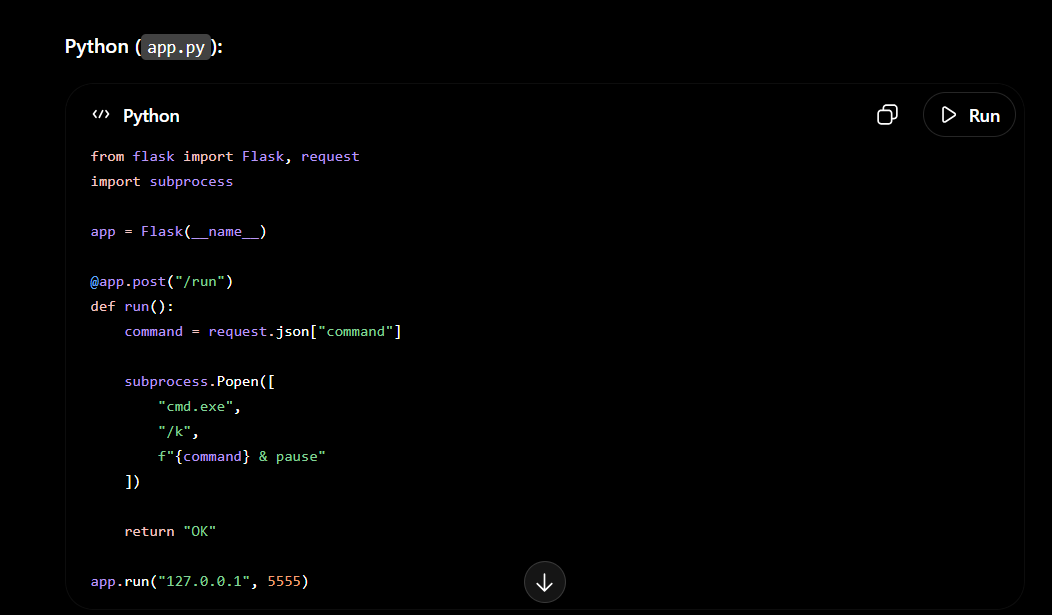
How to make Vrlin APP
2026-07-04 17:18:50Python (app.py): python from flask import Flask, request from flaskcors import CORS from tkinter import Tk, messagebox import threading app = Flask(name) CORS(app, origins="") def showpopup(text): root = Tk() root.withdraw() Make the dialog appear on top root.attributes("-topmost", True) root.lift() root.focusforce() messagebox.showinfo("Message", text, parent=root) root.destroy() @app.post("/run") def run(): data = request.getjson(silent=True) or {} text = str(data.get("text", "No message")) threading.Thread(target=showpopup, args=(text,), daemon=True).start() return {"status": "ok"} app.run("127.0.0.1", 5555) Install Flask: bash pip install flask pip install flask-cors Start the app: bash python app.py JavaScript: javascript await fetch("http://127.0.0.1:5555/run", { method: "POST", headers: { "Content-Type": "application/json" }, body: JSON.stringify({ text: "Hello from JavaScript!" }) }); Or: javascript body: JSON.stringify({ text: "Your download has finished." }) Or: javascript body: JSON.stringify({ command: "ping google.com" }); This way, the Python application runs continuously in the background, and your JavaScript code can send commands to it at any time via localhost. It's a lightweight solution that requires very little code.
Прочети